PRINT CARDS

Shop

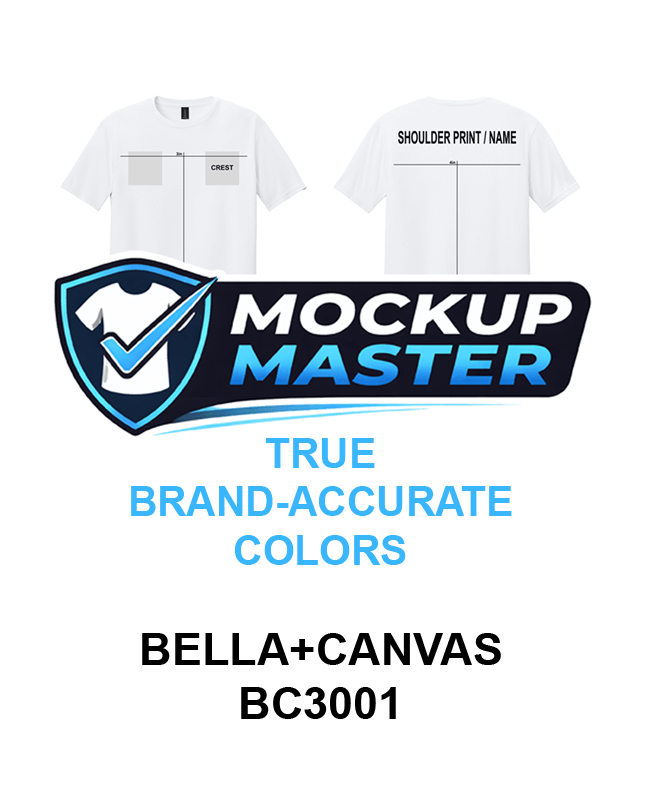
Mockup Master – BELLA+CANVAS BC3001

$19.99

This .PSD opens in Adobe Photoshop as well as Affinity by Canva (Free Software Download)

click HERE for a DEMO VIDEO of this file in operation

*You can request a Brand / Model # not offered by contacting us and we will custom tailor a file for you as well as add it to the site! – CONTACT HERE

SKU: MM-BC3001 Category: Tags: , , Brands:

Product Description

Mockup Master is a print-accurate apparel mockup system designed by a real print shop.
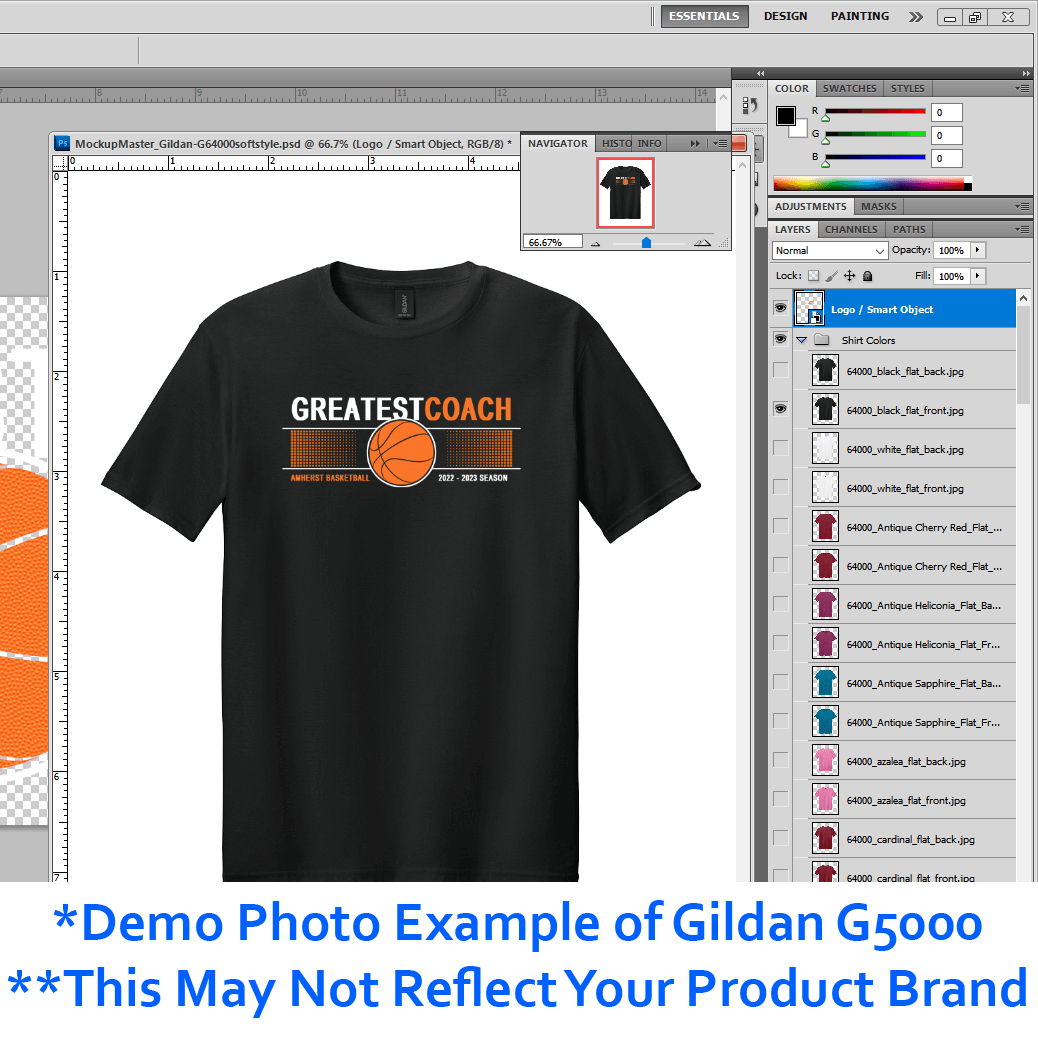
Drop your artwork at true size (and at 300dpi) in our Smart Layers and preview it on brand-accurate garment colors.

Bullet highlights:

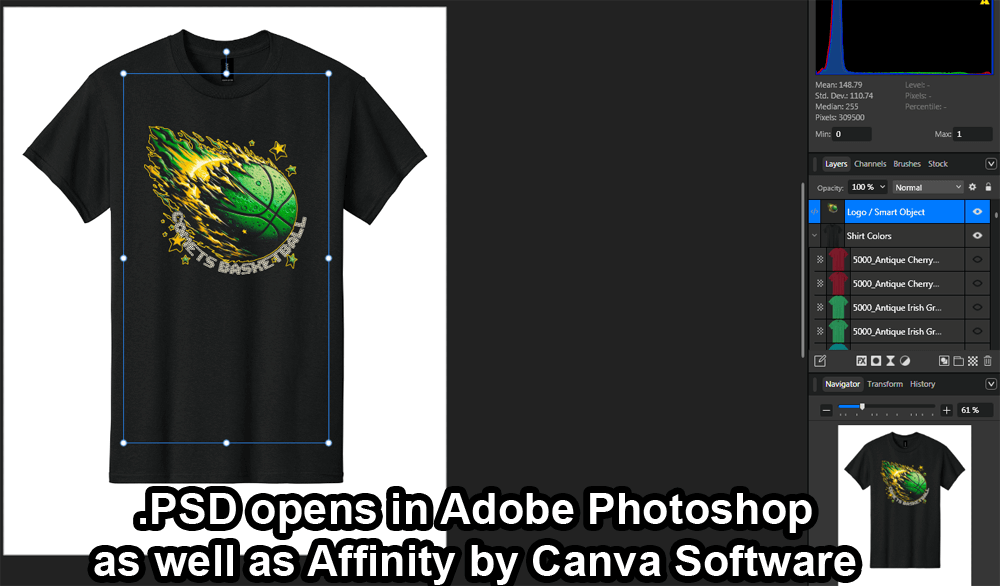
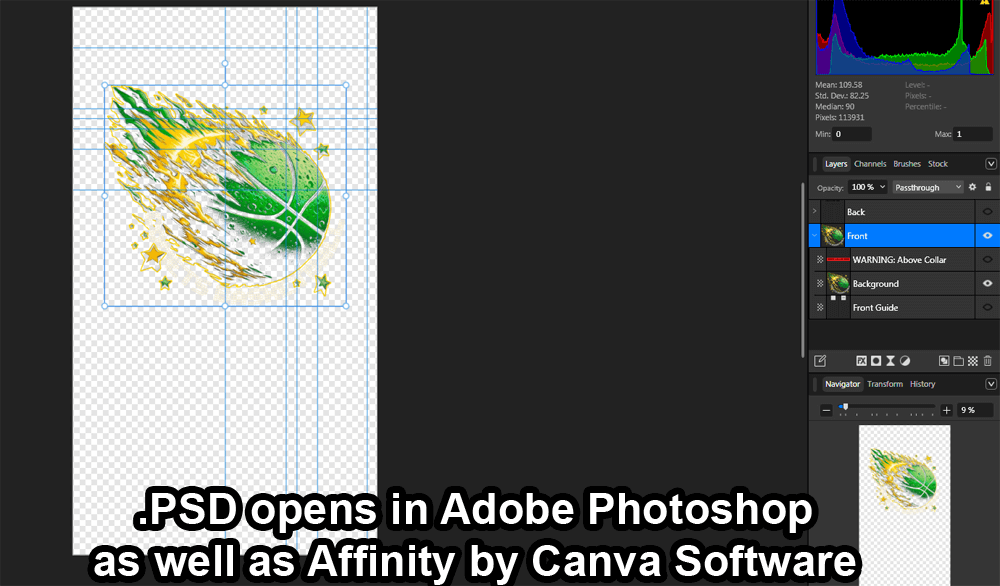
  • ✔ .PSD opens in Adobe Photoshop as well as Affinity by Canva (Free Software Download)

  • ✔ Import Real print size at 300 DPI
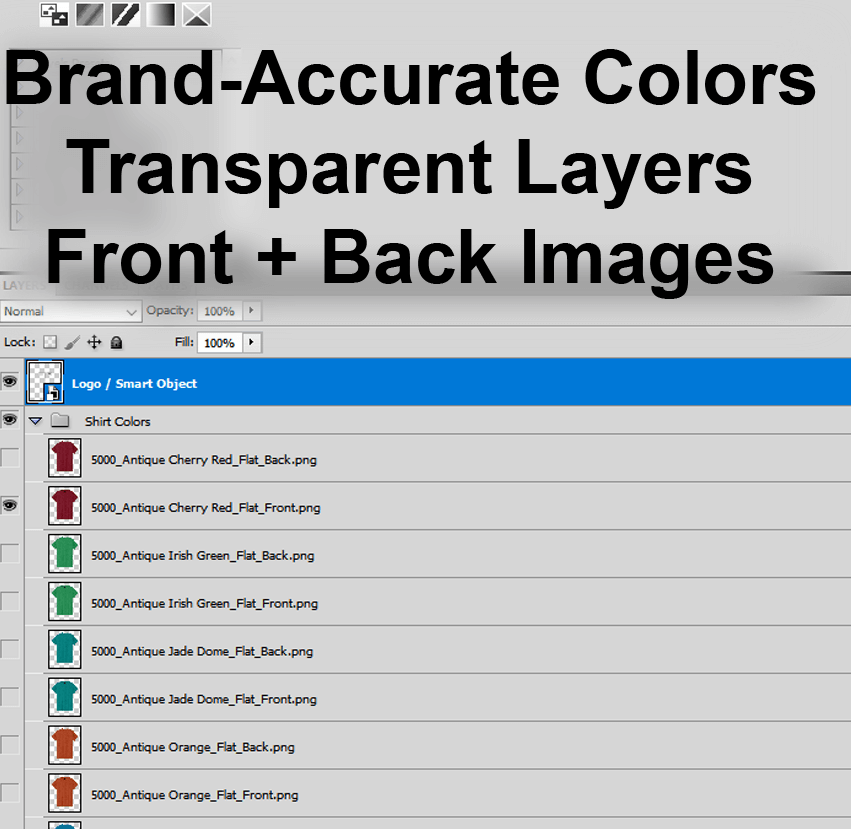
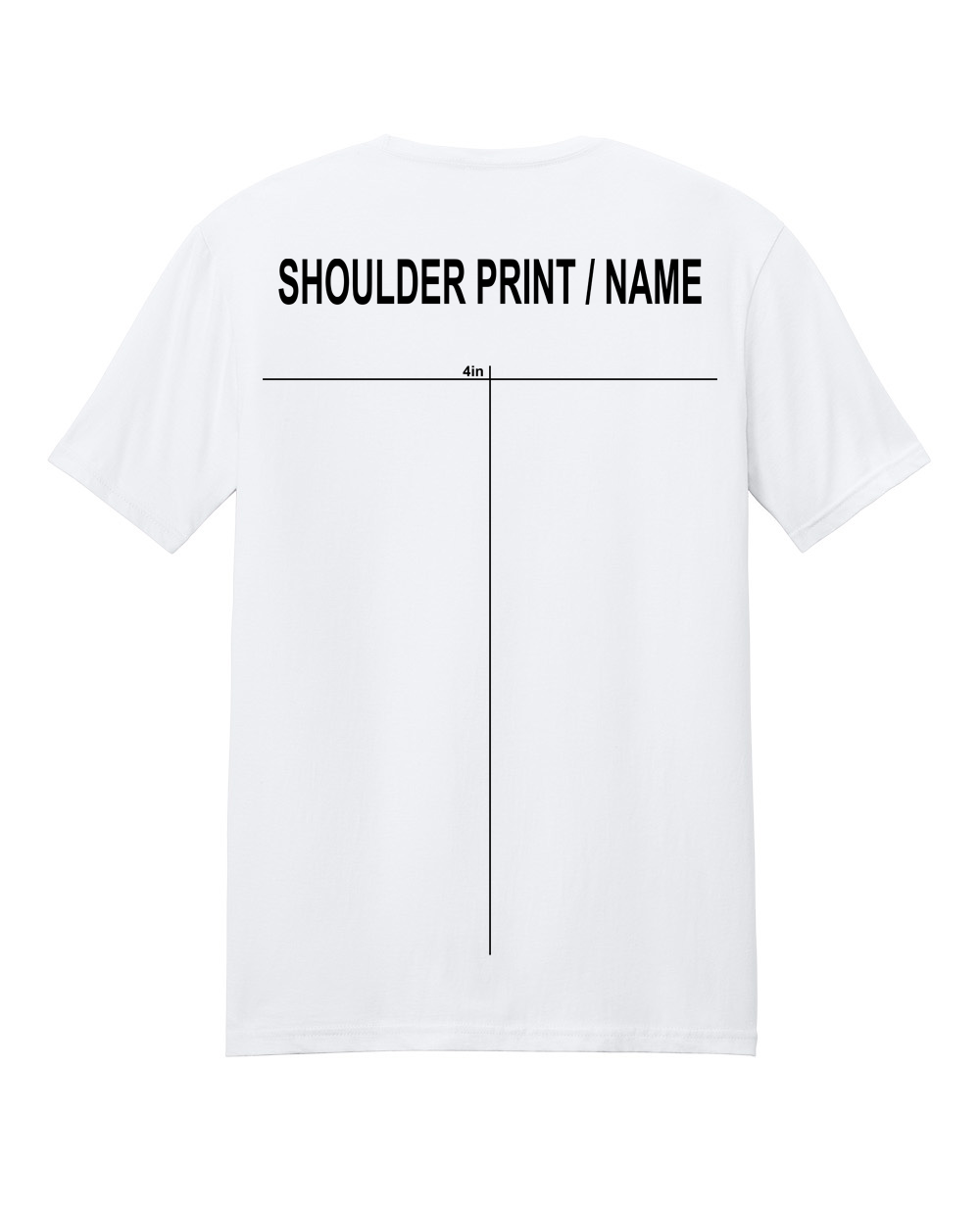
  • ✔ Brand-accurate garment colors (in transparent layers, both front + back)

  • ✔ Smart Object workflow (no scaling tricks)

  • ✔ Perfect for DTF, DTG & screen print proofing

  • ✔ Front/back image placement guides + abstract placement friendly

What’s included:

  • 1 layered .PSD file (zipped)

  • Smart Object for artwork

  • Color-accurate garment layers (based off brand / vendor provided images)

  • ReadMe Quick Start Guide

Who this is for:

  • Print shops

  • Designers

  • Etsy sellers

  • Anyone who needs accurate client proofs


Mockup Master

Brand-Accurate Apparel Mockup – Quick Start GuideThis file is designed to help you preview *real print size artwork on *true garment colors, almost exactly how it would appear in production.

This is not just a decorative mockup — it is a print-accurate proofing tool.

**How To Contents**
A. How to Use the Smart Layer (Artwork Placement)
B. Why Positioning Matters (True Mockup Behavior)
C. Artwork DPI Requirements (Very Important)
D. Turning Garment Colors On / Off
E. Adding or Changing the Background
F. Troubleshooting Common Questions

————————————————
————————————————

A. How to Use the Smart Layer (Artwork Placement)

1 Locate the layer named “Logo / Smart Object” (Smart Object)
2 Double-click the Smart Object thumbnail icon
3. Place your artwork into the Smart Object window (at 300dpi, SIZED EXACTLY how large the print is intended to be)
4. Do not scale the canvas — position your artwork at its final print size
5. Save and close the Smart Object by clicking the X, YES to Save Changes
6. Your artwork will automatically update on the garment mockup
⚠️ Important: This Smart Object represents real-world print scale

————————————————
————————————————

B. Why Positioning Matters (True Mockup Behavior)

1. This mockup uses actual garment proportions and print placement guides so you can see how to set up your press every time
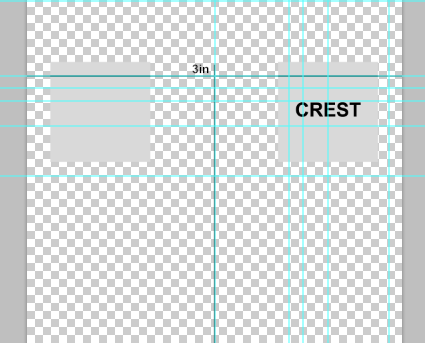
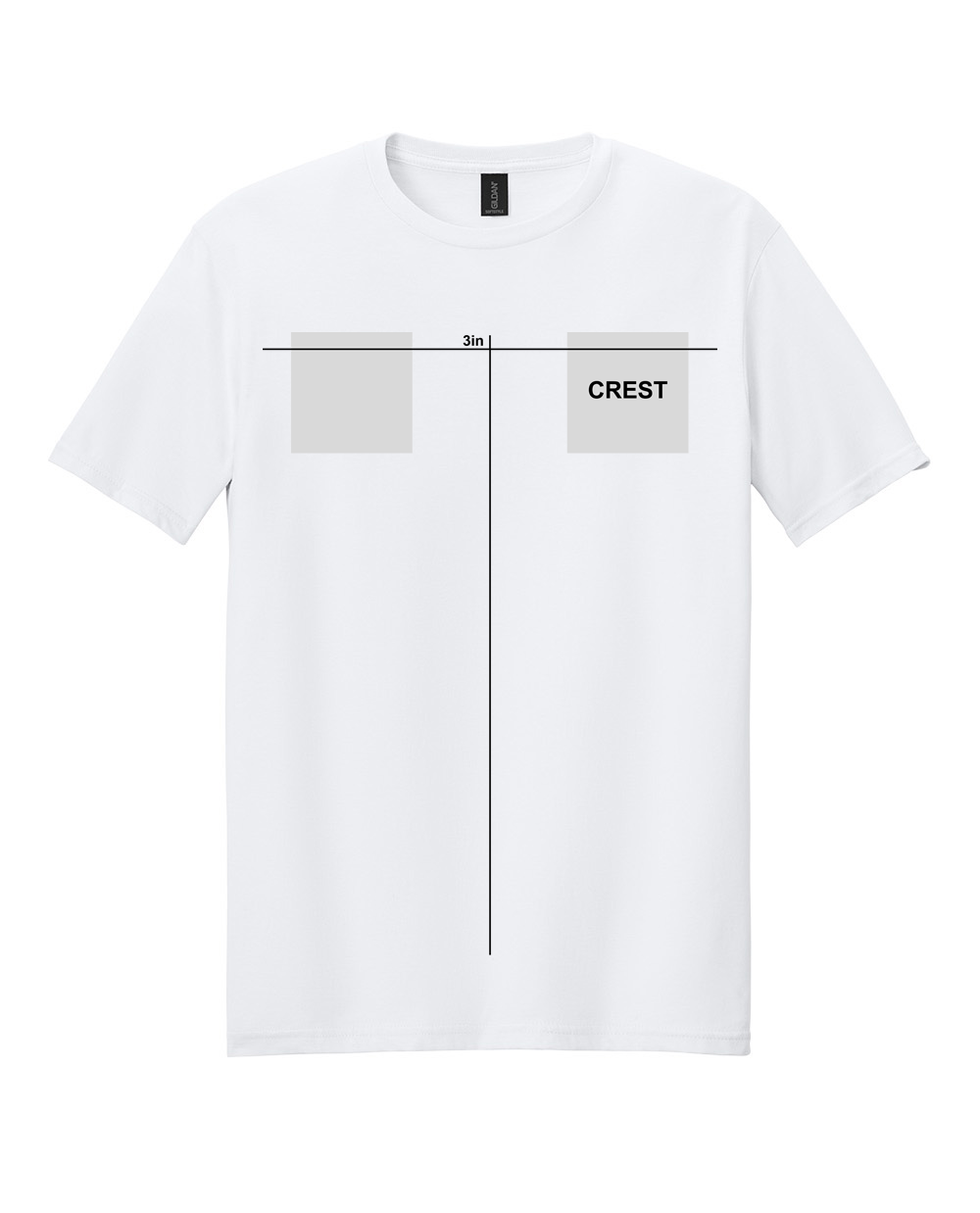
2. This mockup shows where Center chest, left chest, oversized, back placements or abstract placements would print
3. If artwork looks “off,” you know can calibrate your press to the guides here with rulers, t-squares, lasers or other registration systems
4. This helps you catch placement issues before production

————————————————
————————————————

C. Artwork DPI Requirements (Very Important)

1. This mockup expects print-ready artwork
Artwork must be:
1.1 300 DPI
1.2 At final print size
1.3 Preferably with a transparent background (for print methods needing it)

2. If your artwork is:
2.1 72 DPI
2.2 Upscaled
2.3 Smaller than intended
…it will appear small or soft in the mockup — just like it would when printed
⚠️ Important: This is intentional by the Smart Layer so you know specs are off

If it looks wrong here, it would look wrong in production

————————————————
————————————————

D. Turning Garment Colors On / Off

1. Each garment color and orientation is on its own layer

Quick tips:
1.1 Click the eye icon to toggle colors
1.2 Alt / Option-click an eye icon to isolate a single color
1.3 Keep only one color visible at a time for clean mockups
This allows fast switching between brand-accurate colors

————————————————
————————————————

E. Adding or Changing the Background
If you need a background:
1. Use the BACKGROUND FOLDER group labelled “BG” to insert or design your background image

————————————————
————————————————

F. Troubleshooting Common Questions

1. “My artwork looks too small or too large”

Check the following:

1.1 Is the artwork 300 DPI?
1.2 Is it placed at actual print size?
1.3 Was the artwork scaled inside the Smart Object?
⚠️ Important: This file does not auto-resize artwork
What you see is what would print

2. “My design looked fine elsewhere but looks wrong here”

2.1 Many mockups auto-scale artwork for aesthetics
This one does not
2.2 This mockup shows true print scale, which may differ from stylized previews

3. “Can I resize my design?”

3.1 Yes — but resize the artwork itself, not the Smart Object canvas

If you need to resize:

3.1.1 Go back to your design file
3.1.2 Adjust size properly at 300 DPI
3.1.3 Re-import into the Smart Object

————————————————
————————————————

⚠️ Important Disclaimer

This mockup is designed for digital proofing consistency

Final printed results may vary slightly based on:
Fabric type
Ink system
Print method (DTF, DTG, screen print, etc.)

Always follow your printer’s production guidelines

————————————————
————————————————

Created By

The Print Remedy
Built by a real print shop for real production workflows

🌐 https://theprintremedy.com

Mockup Master
Brand-Accurate Apparel Mockup – Quick Start GuideThis file is designed to help you preview *real print size artwork on *true garment colors, almost exactly how it would appear in production.

This is not just a decorative mockup — it is a print-accurate proofing tool.

**How To Contents**
A. How to Use the Smart Layer (Artwork Placement)
B. Why Positioning Matters (True Mockup Behavior)
C. Artwork DPI Requirements (Very Important)
D. Turning Garment Colors On / Off
E. Adding or Changing the Background
F. Troubleshooting Common Questions

------------------------------------------------
------------------------------------------------

A. How to Use the Smart Layer (Artwork Placement)

1 Locate the layer named "Logo / Smart Object" (Smart Object)
2 Double-click the Smart Object thumbnail icon
3. Place your artwork into the Smart Object window (at 300dpi, SIZED EXACTLY how large the print is intended to be)
4. Do not scale the canvas — position your artwork at its final print size
5. Save and close the Smart Object by clicking the X, YES to Save Changes
6. Your artwork will automatically update on the garment mockup
⚠️ Important: This Smart Object represents real-world print scale

------------------------------------------------
------------------------------------------------

B. Why Positioning Matters (True Mockup Behavior)

1. This mockup uses actual garment proportions and print placement guides so you can see how to set up your press every time
2. This mockup shows where Center chest, left chest, oversized, back placements or abstract placements would print
3. If artwork looks “off,” you know can calibrate your press to the guides here with rulers, t-squares, lasers or other registration systems
4. This helps you catch placement issues before production

------------------------------------------------
------------------------------------------------

C. Artwork DPI Requirements (Very Important)

1. This mockup expects print-ready artwork
Artwork must be:
1.1 300 DPI
1.2 At final print size
1.3 Preferably with a transparent background (for print methods needing it)

2. If your artwork is:
2.1 72 DPI
2.2 Upscaled
2.3 Smaller than intended
…it will appear small or soft in the mockup — just like it would when printed
⚠️ Important: This is intentional by the Smart Layer so you know specs are off

If it looks wrong here, it would look wrong in production

------------------------------------------------
------------------------------------------------

D. Turning Garment Colors On / Off

1. Each garment color and orientation is on its own layer

Quick tips:
1.1 Click the eye icon to toggle colors
1.2 Alt / Option-click an eye icon to isolate a single color
1.3 Keep only one color visible at a time for clean mockups
This allows fast switching between brand-accurate colors

------------------------------------------------
------------------------------------------------

E. Adding or Changing the Background
If you need a background:
1. Use the BACKGROUND FOLDER group labelled "BG" to insert or design your background image

------------------------------------------------
------------------------------------------------

F. Troubleshooting Common Questions

1. “My artwork looks too small or too large”

Check the following:

1.1 Is the artwork 300 DPI?
1.2 Is it placed at actual print size?
1.3 Was the artwork scaled inside the Smart Object?
⚠️ Important: This file does not auto-resize artwork
What you see is what would print

2. “My design looked fine elsewhere but looks wrong here”

2.1 Many mockups auto-scale artwork for aesthetics
This one does not
2.2 This mockup shows true print scale, which may differ from stylized previews

3. “Can I resize my design?”

3.1 Yes — but resize the artwork itself, not the Smart Object canvas

If you need to resize:

3.1.1 Go back to your design file
3.1.2 Adjust size properly at 300 DPI
3.1.3 Re-import into the Smart Object

------------------------------------------------
------------------------------------------------

⚠️ Important Disclaimer

This mockup is designed for digital proofing consistency

Final printed results may vary slightly based on:
Fabric type
Ink system
Print method (DTF, DTG, screen print, etc.)

Always follow your printer’s production guidelines

------------------------------------------------
------------------------------------------------

Created By

The Print Remedy
Built by a real print shop for real production workflows

🌐 https://theprintremedy.com

Top